
‘Visuals can be deceptive.’
This phrase may sound cliché, but in today’s internet age, it holds true! When visuals – images and videos – constitute a large part of online mis/disinformation, the ability to determine their authenticity becomes an essential skill. So, how does one identify images that are edited, manipulated, or taken out of context?
The answer lies in a combination of observational skills and tools like reverse image search.
You might wonder, “How effective are observational skills?” Before relying on any online tools, it’s beneficial to closely observe an image for clues. Look for elements such as signboards, buildings, or any iconic structures visible in the frame.
Example: An image featuring a bus and a building, with significant clues highlighted. (Source: Unsplash)
Reverse image search acts like a digital detective, assisting you in learning more about images or videos you find online. If you come across a photo that piques your interest, simply upload it to a search engine’s search tab. The tool then scans the web to find information. It can help you:
- Find misleading context: By tracing the origin of an image or video, reverse image search can reveal its actual context.
- Verify the source: It allows users to check the source of the image by identifying details such as who took it, where it was taken, and its context.
To unravel the story behind a picture, try using reverse image search and see where it leads you.
Here’s a step-by-step guide:
- Go to Google Images: Open your web browser and navigate to images.google.com
- Upload or Drag-and-Drop Image: Click on the camera icon in the search bar. You can either upload an image directly or drag and drop the image file into the search bar.
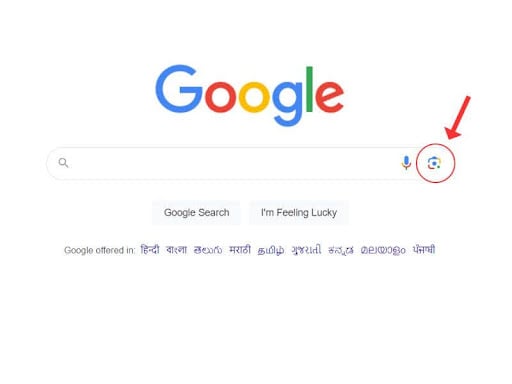
Screenshot of Google search engine showing the image icon. (Source: Google Search/Screenshot)
- Paste Image URL: Alternatively, you can paste the URL of an image. If the image is online, right-click on it, select “copy image address,” and paste the URL in the search bar.
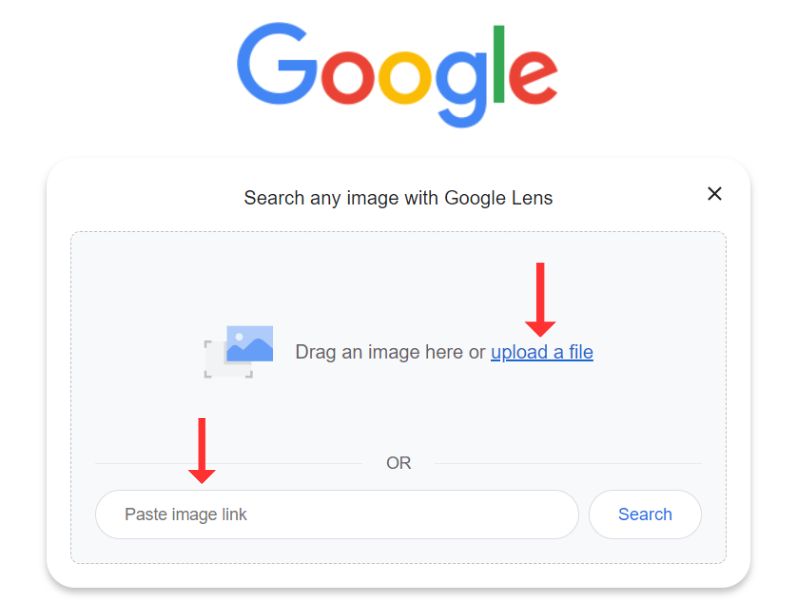
Screenshot that shows how to upload an image and paste the URL. (Source: Google Search/Screenshot)
- Review Search Results: After uploading the image or pasting the URL, Google will display search results related to the image, including web pages where the image appears and visually similar images.
- Explore Image Details: Click on the search results to discover more about the image. Look for the source and additional information to understand the context of the image.
Reverse image search can also assist in geolocating a place using Google Maps, Google Earth, or other applications. Here’s a quick guide on how you can geolocate images.
The process of conducting a reverse image search is similar on both computers and mobile phones, with minor variations depending on the device.
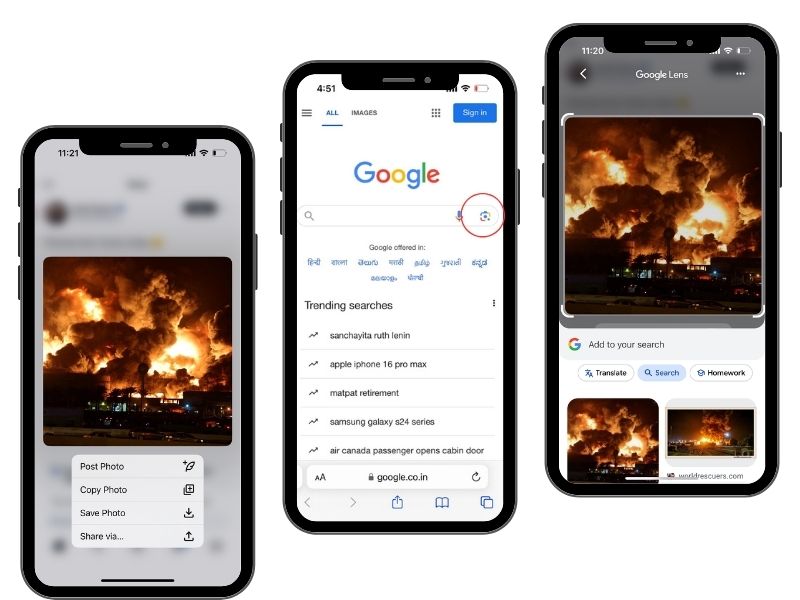
Collage showing three-step verification of an image using an iPhone. (Source: Logically Facts)
Now, if you have an image open on your desktop, here’s how to perform a quick search:
Step 1: Right-click on the image and select ‘Search image with Google.’
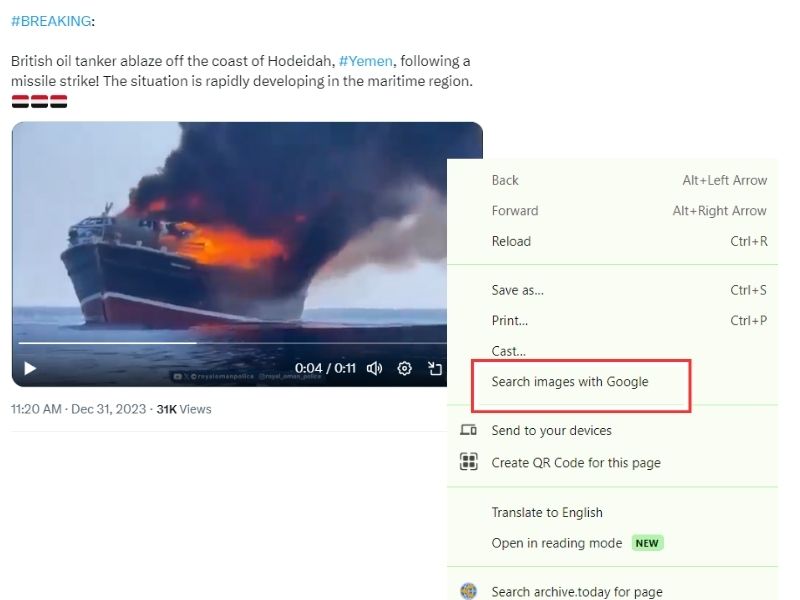
Screenshot of running the image through a reverse image search on the browser by right-clicking. (Source: X)
Step 2: Click on this option, and you will be directed to results that Google deems similar to your query.
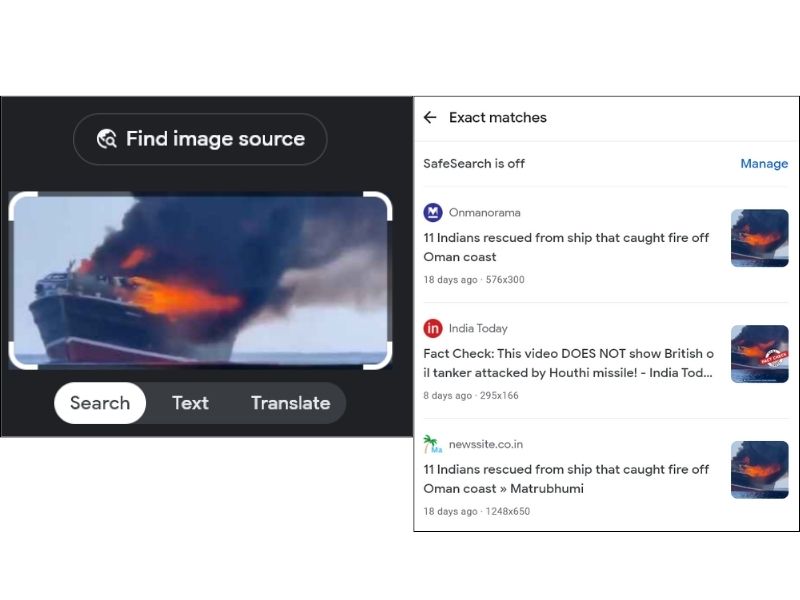
Screenshot that shows the reverse image search results page. (Source: Google Reverse Search)
Step 3: Examine the results to find answers.
In addition to Google, other search engines like Yandex, TinEye, and Bing also offer reverse image search capabilities.
Pro tip: Enabling the ‘InVID’ extension on your Chrome browser gives you access to all these search engines in one place.
(This report first appeared on logicallyfacts.com, and has been republished on ABP Live as part of a special arrangement. Apart from the headline, no changes have been made in the report by ABP Live.)